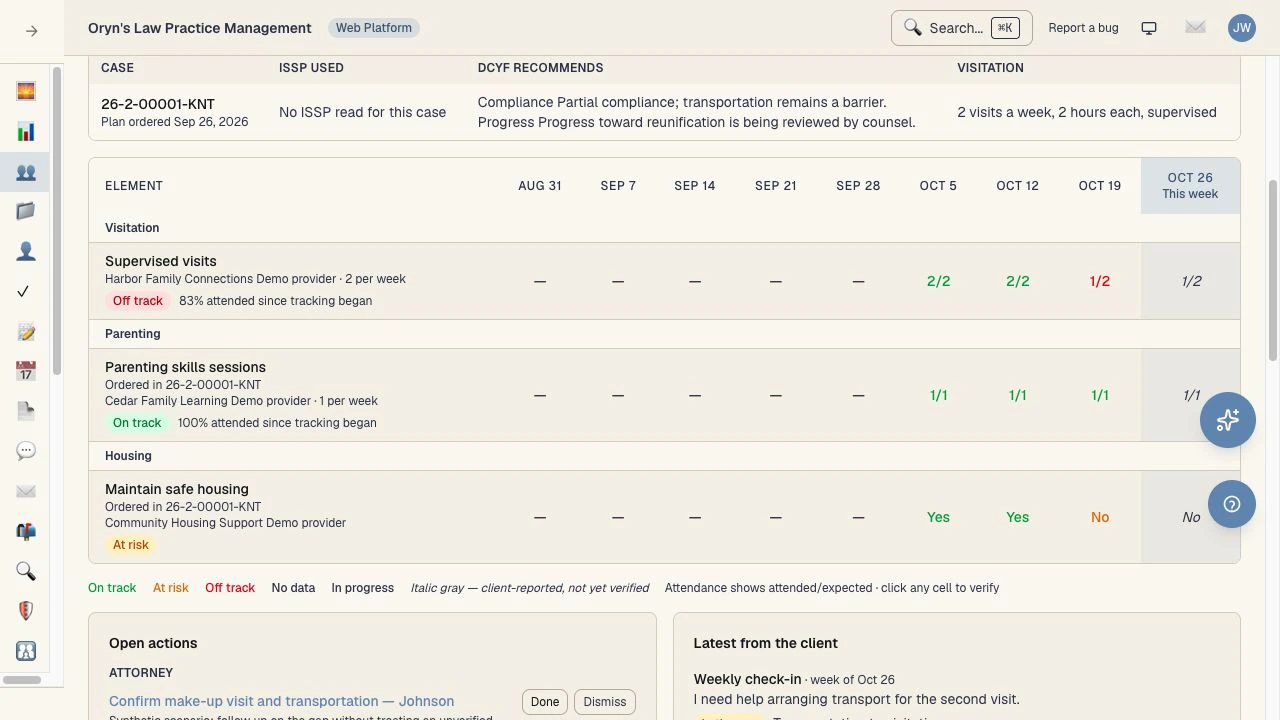
01 · Case planning
See progress, barriers, and the next step.
Weekly check-ins keep reported attendance beside verified progress. A transportation problem becomes a follow-up, with the plan and the client still in view.
 oryn
Follow a fictional matter from plan progress to the next decision. These are screenshots of the Oryn demo, using synthetic data.
Real Oryn screens from a fictional practice. Open any screenshot for a closer look, or explore the demo yourself.
01 · Case planning
Weekly check-ins keep reported attendance beside verified progress. A transportation problem becomes a follow-up, with the plan and the client still in view.
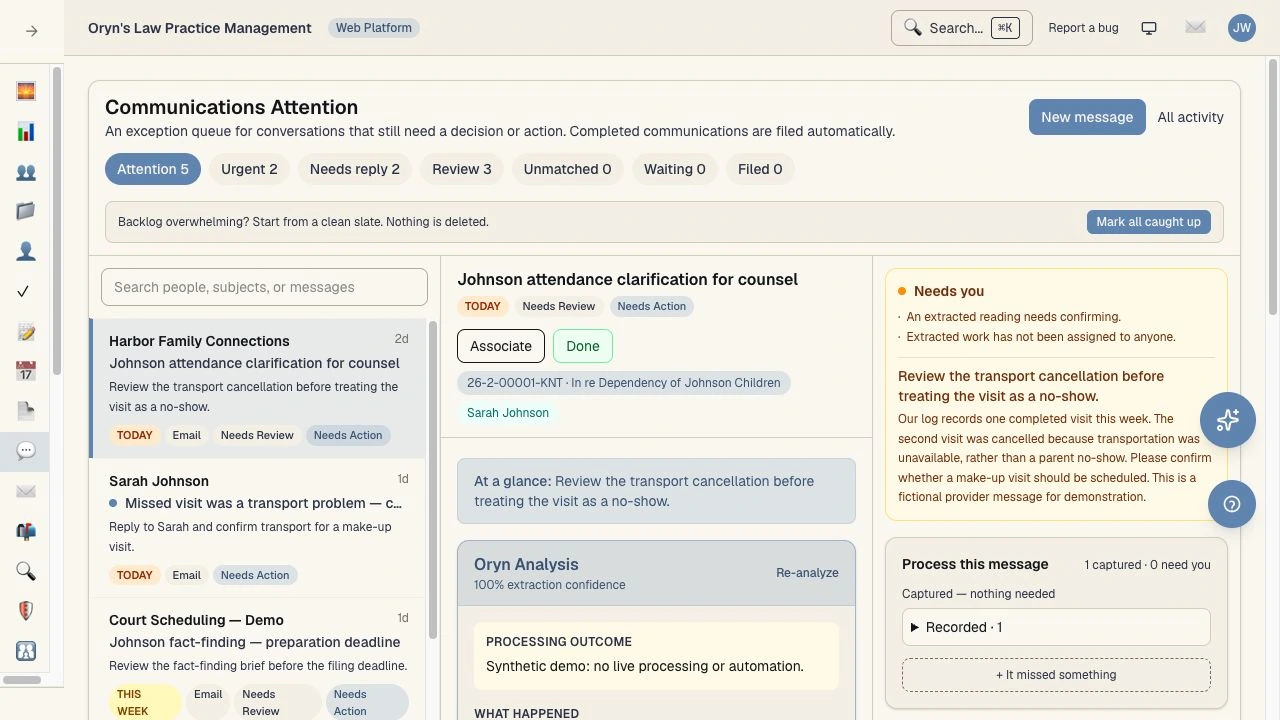
02 · Communications
The provider says the missed visit was a transport cancellation. Review the source message and its proposed significance before deciding what it means for the case.
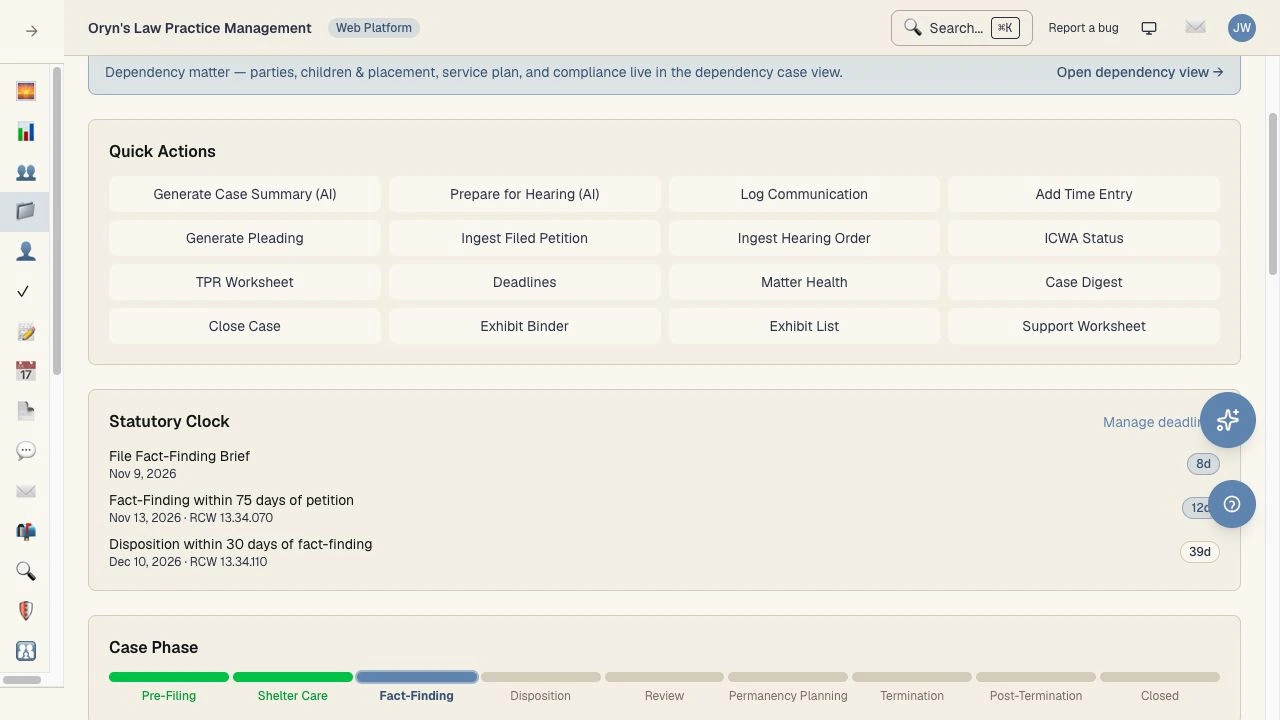
03 · Case awareness & deadlines
The case phase, statutory clock, and next hearing sit together. Open the plan, documents, or hearing preparation from the same matter.
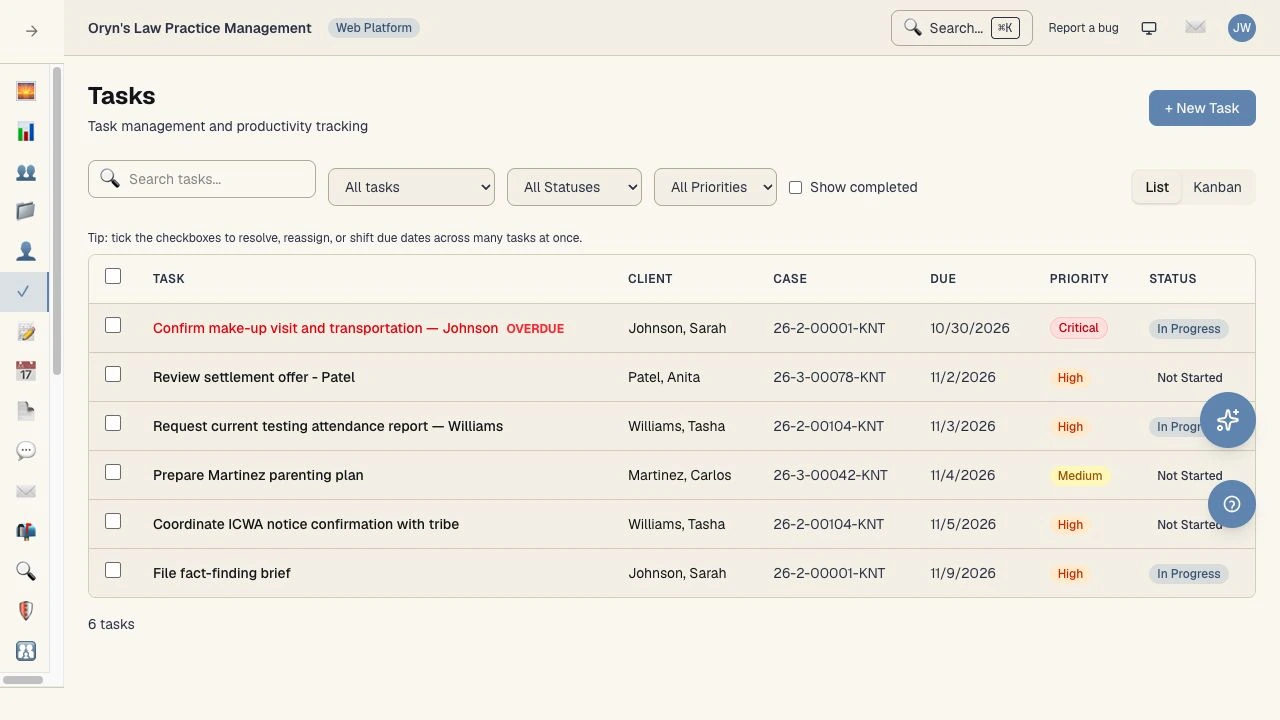
04 · Follow-up work
The transport follow-up has an owner, a due date, and a linked case. See it alongside upcoming work, with overdue items clearly marked.
05 · Client portal
Services, reported progress, and the next hearing in a simpler client view. Weekly check-ins and “Tell your attorney” prompts give clients a way to report what changed. Shown here in a read-only beta preview.
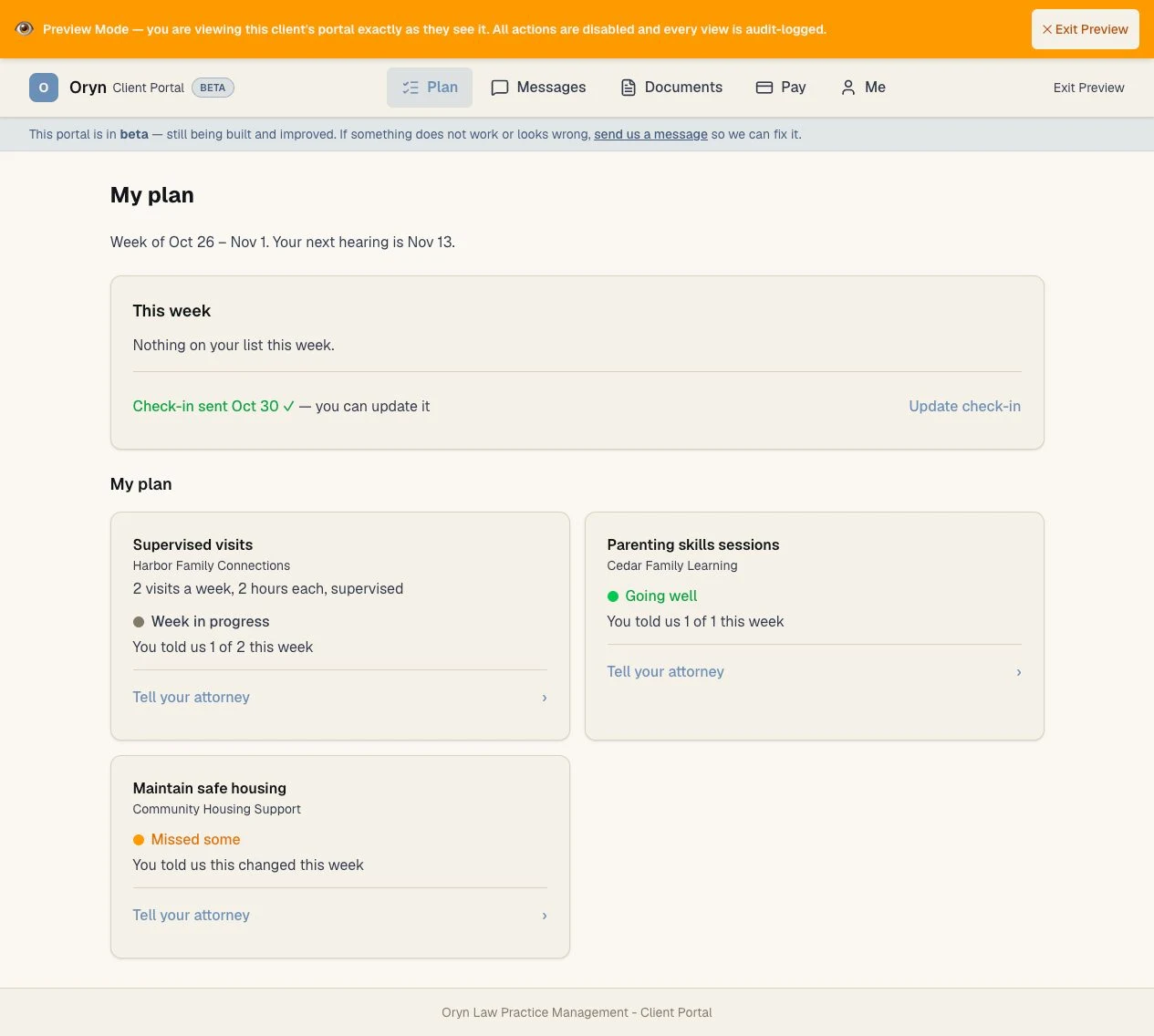
Between appointments, clients can keep their legal team informed and work through the next step. Their reported progress stays distinct from verified progress, so the attorney can review the details before relying on them.
Clients see their case, next hearing, and the services in their plan. Visits, classes, and other requirements have a place they can return to between conversations.
Weekly check-ins capture attendance, changes, and barriers such as transportation or housing. Clients can update a check-in or flag a service issue for their attorney to review.
Clients can message their legal team and return to the conversation history. Their updates give the attorney context for the next call, meeting, or follow-up.
Clients can view and download documents shared with them and upload material for their legal team. They see the documents made available to their own matter.
Assigned questionnaires collect the details the legal team needs. Clients can also explain what they want the court to do through a guided request for their lawyer to review.
When an attorney shares a plan report, clients can read it, acknowledge it, and send back questions or corrections before the next conversation.
With consent, the AI assistant helps clients ask questions, work through assigned questionnaires, and articulate a message to their attorney. Legal decisions stay with the attorney.
Clients can review invoices and payment history, propose a payment plan, or raise an invoice dispute. Online payment is available when the firm has configured its payment provider.
Designed for phones and desktops, with Plan, Messages, Documents, Pay, and Me navigation. Clients can also keep their contact information current. Staff can preview a client’s portal in read-only mode; preview actions are disabled and views are audit-logged. The portal is in beta and continues to be improved.
Screenshots captured October 31, 2026. All people, case activity, and messages shown are synthetic. Example messages and findings are prefilled for this walkthrough. Suggested findings remain subject to attorney review. Deadline calculations depend on the matter data and supported rules.
Explore the live demo →Both integrations are in development and are not released. The screenshots above show the Oryn application, not a working Clio or MyCase connection.
In development — not released
We are developing an integration for Clio users, with Washington family-law forms and related preparation workflows as the initial focus. It is not available for installation.
In development — not released
A MyCase integration is in development. It is not released, and connection, installation, and launch details are not yet available.
Explore Oryn at your own pace in the live demo.
Oryn is a Decoded Systems product, built in Washington State.